
syncta
How to Export Your Data From Syncta (Step-by-Step)
Pete Volk · August 18, 2026 · 4 min read
The short answer: Syncta doesn't publish a public walkthrough of its export process, so the exact menu names below are described generally rather than click-by-click — but the pattern (an export or download option under Settings, Reports, or the customer/device list itself) is a safe bet based on how this category of software is typically built. Once you have a CSV or Excel file out of Syncta, CrossConnectHub's import wizard is built to take it from there: upload the file, review an auto-suggested column mapping (including common Syncta-style header names), see exactly which rows will and won't import before committing, and duplicate customers get caught automatically.
Getting your data out of Syncta
Syncta doesn't have a public help article covering this in detail, so the specifics below are general guidance rather than a confirmed walkthrough of their current interface — worth verifying against your own account, or asking Syncta support directly if you can't find it.
In most systems built like Syncta (customer/device database with a reminders and reporting layer), an export option typically lives in one of a few predictable places: a Settings or Account menu, a Reports section, or directly on the customer or device list screen itself (often a "Download" or "Export" button above the table). Look for an option to export as CSV or Excel rather than PDF — a PDF report isn't usable for re-importing elsewhere, since it isn't structured data. If your device list and customer list are stored as separate views in Syncta, you may need to export each separately.
If you can't find an export option at all: contact Syncta support and ask directly — most software in this category can produce a CSV export even if it isn't self-service, since it's standard practice not to lock customer data in permanently.
Getting your data into CrossConnectHub
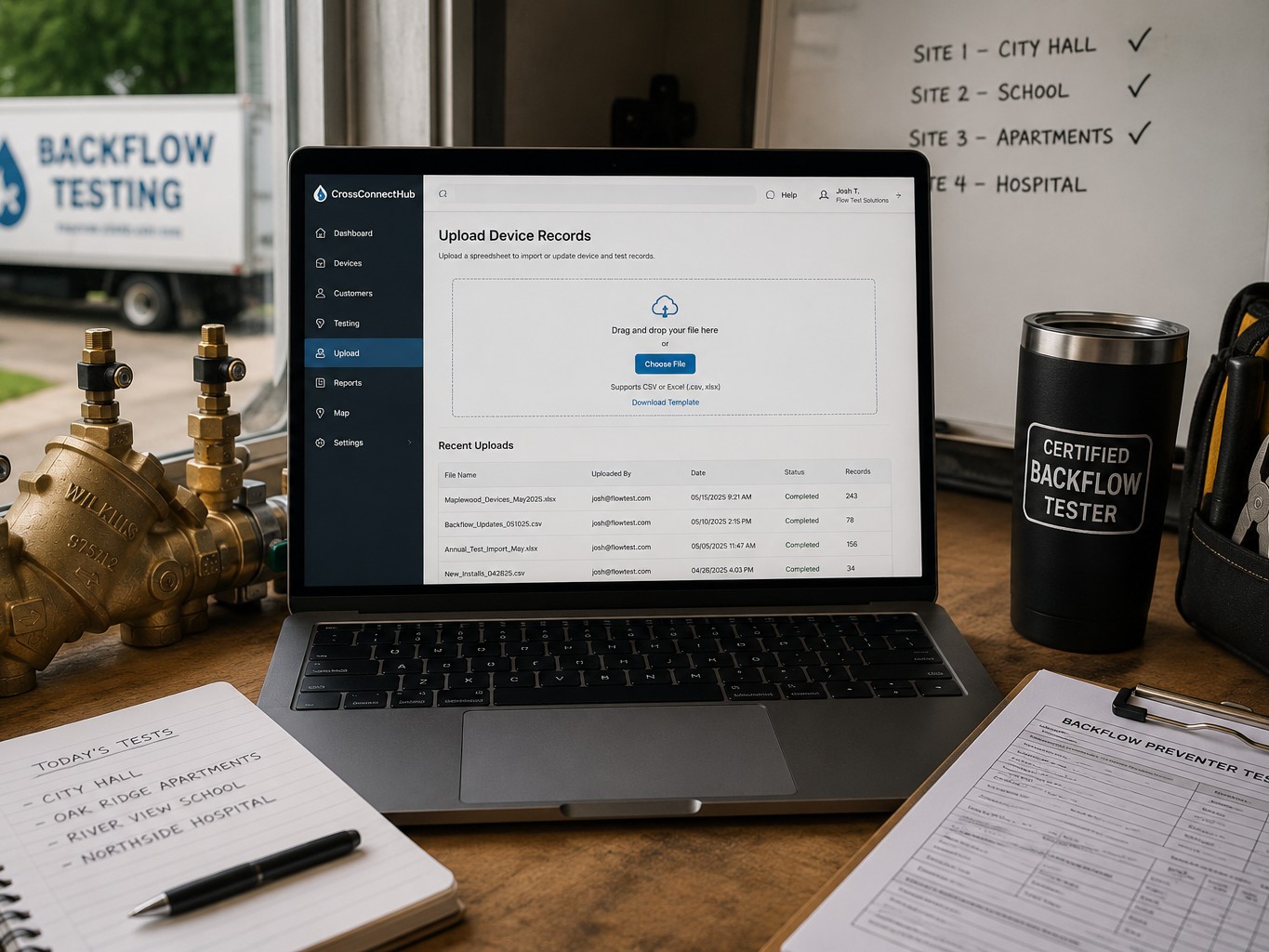
Once you have a CSV or Excel file, here's what actually happens on the CrossConnectHub side, based on the import wizard as built:
- Upload. Drop in your CSV or Excel (.csv, .xlsx, or .xls) file — no reformatting required first.
- Column mapping. The wizard auto-suggests how your file's columns map to CrossConnectHub's fields, using a header-alias dictionary that includes common Syncta- and FlatTest-style column names. Review this step regardless — auto-suggestion is a starting point, not a guarantee, since exact Syncta export formatting hasn't been verified against a live file.
- Row-by-row preview. Before anything is actually imported, you see every row color-coded — OK, Warning, or Won't Import — with a plain-language reason for anything that isn't clean. A row missing a customer name won't import; a row missing device details still imports the customer, flagged so you can fill in the device later; dates in mixed formats (and even stray spreadsheet date-serial numbers) are parsed automatically, with anything unparseable left blank and flagged rather than guessed at.
- Duplicate handling. If the same customer appears more than once in your file — or already exists in your account — the wizard catches it by matching on normalized name and service address, so you don't end up with duplicate customer records.
- Commit. Nothing is written to your account until you approve the final preview. After that, your customers and devices are in CrossConnectHub with due dates calculated and ready for the recall engine to track.
What to check after importing
Skim the per-job import log afterward for anything flagged as needing manual entry — most commonly a device with no due date on file, which needs a last-test or install date added by hand before reminders can start tracking it.
Frequently asked questions
Will CrossConnectHub automatically recognize my Syncta export's column headers? It will suggest a mapping using known Syncta- and FlatTest-style header names, but always review the suggested mapping before committing — exact Syncta export formatting can vary and hasn't been independently verified against a live file.
What happens to rows with missing or bad data? Nothing is silently dropped. Every row is shown as OK, Warning, or Won't Import with a specific reason before you commit, and a customer can still import even if a device row is incomplete.
Do I need to clean up my spreadsheet before uploading it? No — the wizard is built to handle a realistically messy file (missing phone numbers, mixed date formats, blank rows, duplicate customers). It's fine to upload your export as-is and let the preview step tell you what needs attention.
Sources: CrossConnectHub import wizard behavior per backflow-mvp-framework-sprint-plan.md (Sprint 2 status, this project). Syncta's export process was not independently observed in a live account for this post — treat Section 1 as general guidance, not a confirmed walkthrough.
Ready to stop losing renewals?
We're taking founding customers now — locked-in pricing and a direct line to the person building it.
Get Early AccessMore from the blog

business-growth
How to Start a Backflow Testing Business
A practical overview of what it actually takes to start a backflow testing business — certification, insurance, equipment, building a customer base, and the systems that keep it running.

business-growth
How Many Devices Can One Tester Manage Profitably?
A working framework for estimating how many backflow devices a solo tester or small crew can realistically and profitably manage, and the levers that move the number most.

regulatory
EPA Cross-Connection Control Requirements, Explained
What the EPA actually says about cross-connection control and backflow prevention — and why the real rules you follow come from your state and local water authority, not a single federal standard.